Set Up IPTV on XCIPTV Player: Complete Step-by-Step Guide
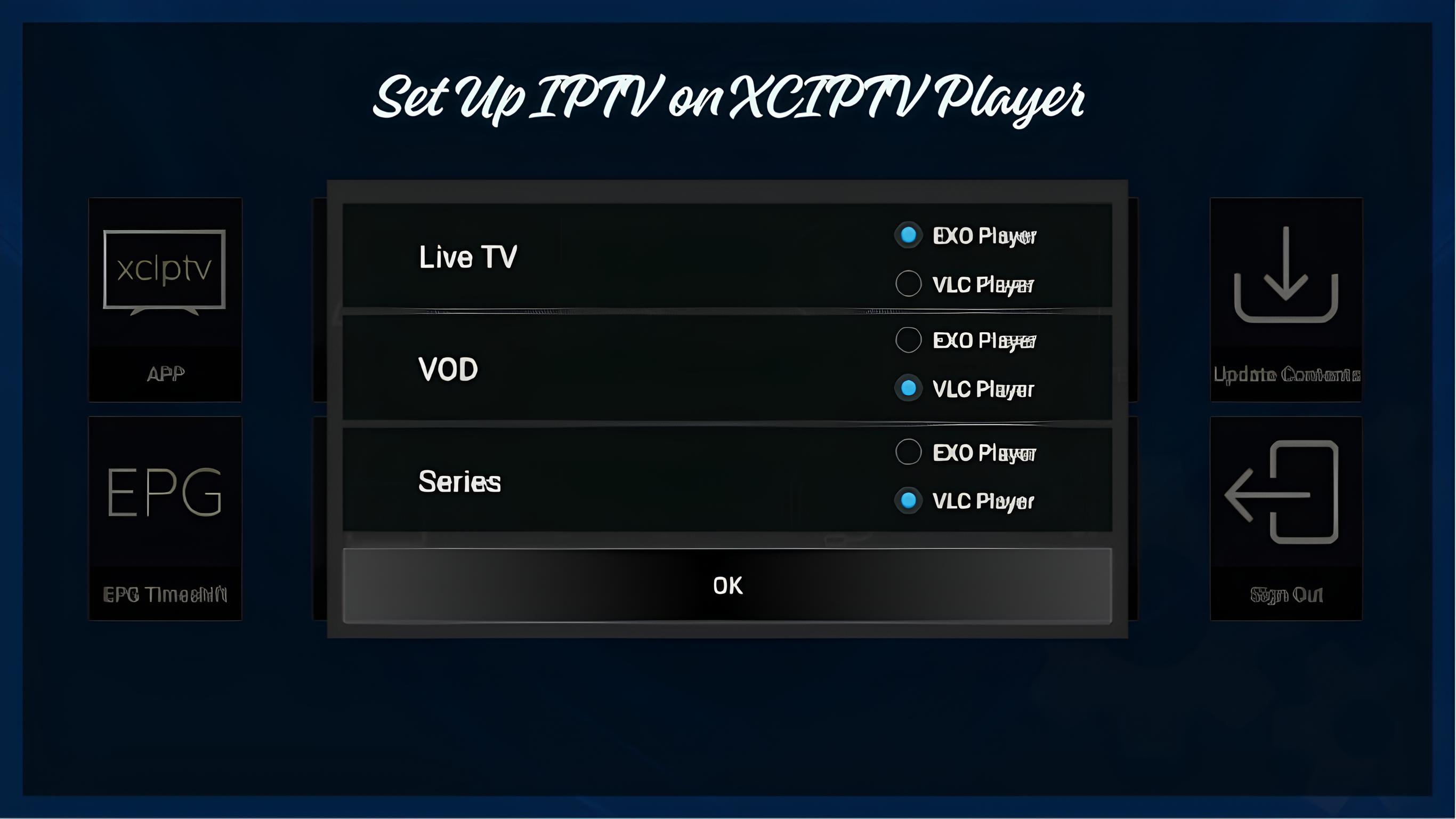
Setting up IPTV on XCIPTV Player is a straightforward process when you have the correct login details and a compatible device. XCIPTV Player is designed to provide a simple interface for accessing live TV channels, movies, series, and other available content through a compatible IPTV service.
If you are using iptvuk.my This guide explains how to configure your subscription on XCIPTV Player and troubleshoot common setup problems.
What Is XCIPTV Player?
XCIPTV Player is an IPTV media player that allows users to access content from a compatible IPTV service. The application itself generally works as a player, meaning you need valid IPTV subscription information before you can stream content.
Depending on your IPTV service and login method, you may receive details such as:
- Username
- Password
- Server or portal URL
- M3U playlist URL
- EPG information
- Xtream Codes details
For users with an iptvuk.my subscription, the required connection details should be obtained from the service provider.
What You Need Before Setting Up IPTV on XCIPTV Player
Before starting the setup, make sure you have everything required.
1. A Compatible Device
XCIPTV Player may be available on compatible Android-based devices. Availability and features can vary depending on the device and application version.
2. A Stable Internet Connection
A reliable internet connection is important for smooth streaming. Wi-Fi, Ethernet, or another suitable connection can be used depending on your device.
3. An IPTV Subscription
You need an active IPTV subscription to access IPTV content. If you are using IPTVUK, my, keep the login credentials provided with your subscription ready.
4. XCIPTV Player
Install XCIPTV Player from a legitimate and trusted source supported by your device. Avoid downloading modified or unofficial application packages.
How to Set Up IPTV on XCIPTV Player
The exact interface can vary between versions, but the general setup process is similar.
Step 1: Install XCIPTV Player
First, install XCIPTV Player on your compatible device.
After installation, open the application. You may see options for adding an IPTV playlist or logging in through supported credentials.
Step 2: Open the Login Screen
Launch XCIPTV Player and look for the option to add or configure a new account.
Depending on the version, you may see an option for Xtream Codes API, M3U URL, or another supported playlist method.
Choose the method that matches the information provided by your IPTV service.
Step 3: Enter Your IPTV Login Details
If you are using the Xtream Codes login method, you will generally need to enter:
- Username
- Password
- Server URL
Enter the information exactly as provided by iptvuk. my.
Pay particular attention to spelling, spaces, and capitalization because incorrect login information can prevent the playlist from loading.
Step 4: Save the IPTV Configuration
After entering your details, select the appropriate login, add, or save button.
XCIPTV Player will attempt to connect to the supplied IPTV server and retrieve the available content.
If the information is correct and the service is active, your available categories should begin loading.
Step 5: Wait for the Playlist to Load
The first connection may take some time depending on your internet connection, server response, and the amount of content associated with your subscription.
Once loading is complete, you may see categories such as:
- Live TV
- Movies
- Series
- Catch-Up
- Favorites
- Electronic Program Guide (EPG)
The categories available depend on your IPTV subscription.
How to Watch Live TV on XCIPTV Player
After successfully completing the setup, select the Live TV or Live Channels section.
You can browse available categories and select a channel to start playback.
If the channel does not load, check your internet connection first. You can also restart the application and try the channel again.
How to Use EPG on XCIPTV Player
EPG stands for Electronic Program Guide. It provides information about television programs and their scheduled times.
If EPG information is included with your IPTV service, XCIPTV Player may automatically display it after your account has successfully synchronized.
If the guide is empty or incomplete, try refreshing the playlist or EPG data.
The availability and accuracy of EPG information depend on the IPTV service supplying the data.
How to Add an M3U Playlist to XCIPTV Player
Some IPTV services provide an M3U playlist instead of Xtream Codes credentials.
If your iptvuk. my subscription includes an M3U URL, select the M3U or playlist option available in your version of XCIPTV Player.
Then:
- Open XCIPTV Player.
- Select the option to add a playlist.
- Choose the M3U/playlist method.
- Enter or paste your M3U URL.
- Enter any requested playlist name.
- Save the configuration.
- Allow the application to load the playlist.
Once the playlist has loaded successfully, the available content should appear in the relevant sections.
Common XCIPTV Player IPTV Setup Problems
Sometimes IPTV may not work immediately after configuration. The following solutions can help identify common problems.
IPTV Login Details Not Working
If your username or password is rejected, check that you entered the credentials exactly as provided.
Avoid adding extra spaces before or after the information.
If the credentials are correct but still do not work, contact iptvuk.my support to verify that your subscription is active.
IPTV Playlist Not Loading
If the playlist remains empty, check your internet connection and restart XCIPTV Player.
You can also remove the existing account and add the IPTV details again.
IPTV Channels Keep Buffering
Buffering can result from several factors, including:
- Unstable internet connection
- Weak Wi-Fi signal
- Network congestion
- Device performance
- Server-side issues
- High streaming quality
Try restarting your router and closing unnecessary applications running on your device.
Using Ethernet instead of Wi-Fi may also provide a more stable connection when supported by your device.
EPG Is Not Showing
If the EPG is missing, refresh the available guide data if your XCIPTV Player version provides that option.
IPTV Channels Are Not Playing
If only certain channels fail to play, the issue may not necessarily be related to XCIPTV Player.
Try another available channel to determine whether the problem affects the entire playlist or only specific streams.
How to Improve IPTV Streaming Quality on XCIPTV Player
A properly configured application is only one part of achieving reliable IPTV playback.
Use a Stable Internet Connection
A consistent connection can help reduce interruptions during streaming.
Prefer Ethernet When Available
If your device supports Ethernet, a wired connection can provide greater stability than a weak Wi-Fi signal.
Restart Your Device
Restarting your streaming device can clear temporary issues and free system resources.
Keep XCIPTV Player Updated
Using a supported and up-to-date version of the application can help avoid compatibility problems.
Check Your Subscription
If problems continue across multiple devices or channels, contact iptvuk. to confirm that your subscription and connection details are active.
Is XCIPTV Player Easy to Use?
Yes, XCIPTV Player is designed with a relatively simple interface for navigating IPTV content. Once your IPTV account has been configured correctly, you can typically access available live channels, movies, series, and guide information from the application's main sections.
The exact features can vary according to the application version and IPTV service.
XCIPTV Player vs IPTV Service
It is important to understand the difference between an IPTV player and an IPTV service.
XCIPTV Player is the application used to organize and play compatible IPTV streams.
iptvuk. my is the IPTV service providing the subscription and connection information.
Therefore, installing XCIPTV Player alone does not automatically provide live TV channels. You need a valid subscription and compatible playlist or login credentials.
Frequently Asked Questions About XCIPTV Player
Can I use XCIPTV Player without an IPTV subscription?
XCIPTV Player is primarily a media player. You generally need a compatible IPTV playlist or login information to access IPTV content.
What login information do I need?
Depending on the setup method, you may need Xtream Codes credentials, an M3U playlist URL, or other information supplied by your
IPTV UK service.
Why is my IPTV buffering on XCIPTV Player?
Buffering can be caused by an unstable internet connection, weak Wi-Fi, device limitations, network congestion, or streaming-service issues.
Can I use XCIPTV Player on different devices?
Availability depends on the device and the version of XCIPTV Player supported by that platform.
Does XCIPTV Player provide IPTV channels?
XCIPTV Player itself is a player rather than the source of the channels. You need a compatible IPTV service and valid access details.
Final Thoughts
Setting up
IPTV UK Subscription on XCIPTV Player is generally simple once you have the correct subscription information. Install the application, select the appropriate login method, enter your credentials or playlist URL, and allow the content to synchronize.
If you are using iptvuk.my, make sure you use the exact login information supplied with your subscription. For problems such as failed login, missing channels, EPG issues, or persistent buffering, checking your internet connection and subscription status should be your first steps.
With the correct configuration and a stable connection, XCIPTV Player can provide a convenient interface for managing and watching compatible IPTV content.
